---
title: How to work with Issues
sidebar_label: Work with Issues
description: View, manage, and resolve issue reports in PostgresAI Console.
keywords:
- "postgresai issues"
- "issue reports"
- "resolve in cursor"
---
import Tabs from '@theme/Tabs';
import TabItem from '@theme/TabItem';
# How to work with Issues
PostgresAI generates daily issue reports with detected problems and recommended actions for your Postgres databases. This guide shows how to view, manage, and resolve issues.
## Prerequisites
- A PostgresAI account with an active monitoring instance
## View issues in PostgresAI Console
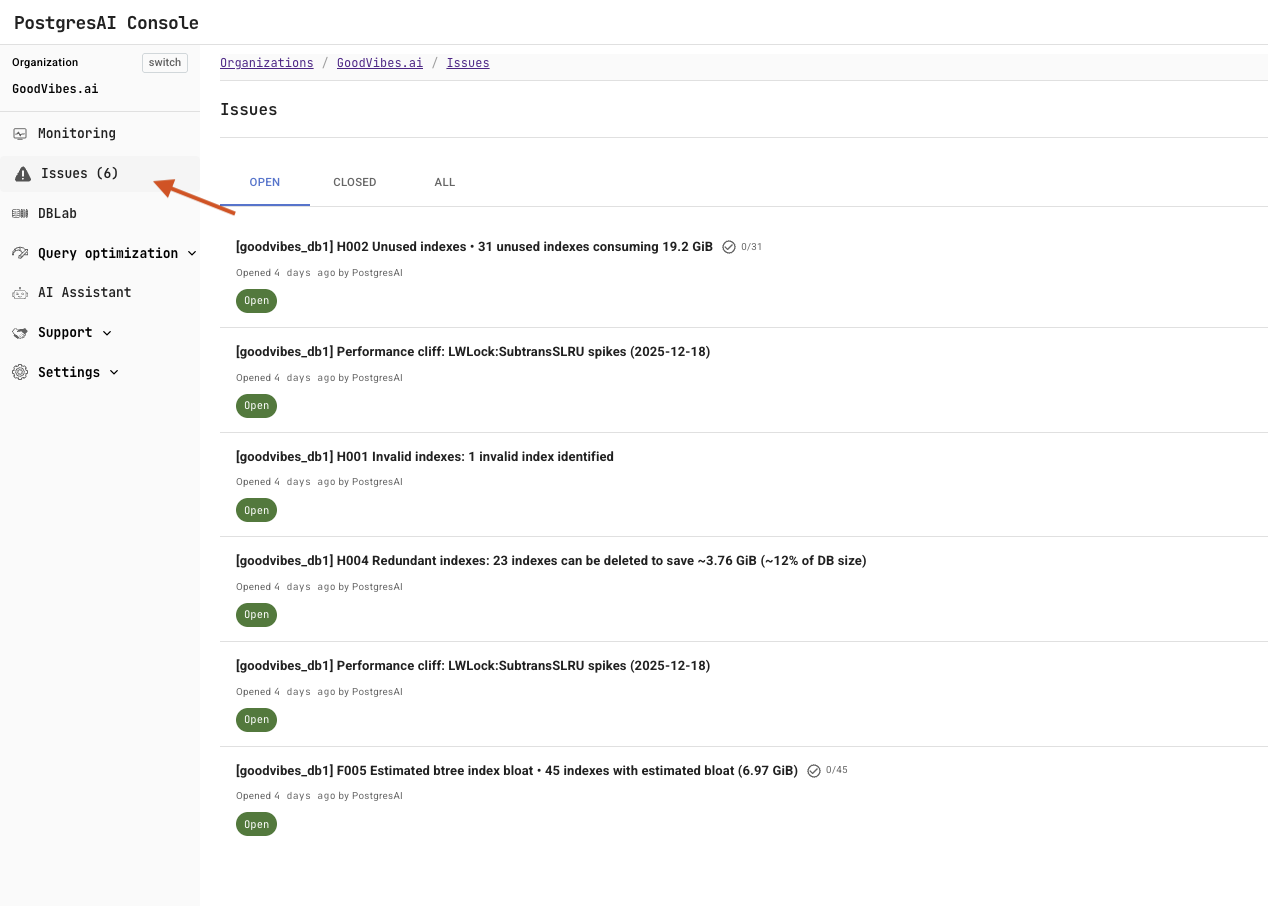
Open [PostgresAI Console](https://console.postgres.ai/) and click **Issues** in the left sidebar to see all issue reports.
[](/assets/install-postgres-ai-monitoring-from-postgresai-console/install-postgres-ai-monitoring-from-postgresai-console-10.png)
## Manage an issue
Click an issue to open its details page. You can:
- **Assignees**: assign the issue to a team member.
- **Status & labels**: update status and labels as needed.
- **Resolve in Cursor**: open the issue in Cursor to work through the recommended steps in your AI-assisted workflow.
[](/assets/install-postgres-ai-monitoring-from-postgresai-console/install-postgres-ai-monitoring-from-postgresai-console-11.png)
## Work with issues via CLI
You can also manage issues using the PostgresAI CLI:
```bash
# List open issues (add --status all to include closed ones)
postgresai issues list
# View a specific issue
postgresai issues view
# Post a comment
postgresai issues post-comment "comment"
```
```bash
# List open issues (add --status all to include closed ones)
npx postgresai@latest issues list
# View a specific issue
npx postgresai@latest issues view
# Post a comment
npx postgresai@latest issues post-comment "comment"
```
```bash
# List open issues (add --status all to include closed ones)
bunx postgresai@latest issues list
# View a specific issue
bunx postgresai@latest issues view
# Post a comment
bunx postgresai@latest issues post-comment "comment"
```
`issues list` shows open issues by default; pass `--status closed` or `--status all` for the rest. If you signed in with a global token (**All my organizations**), add `--org ` or `--org-id ` to each command, or set `PGAI_ORG` — see [organization selection](/docs/reference-guides/postgresai-cli-reference#organization-selection).
By default, `issues` commands print human-friendly YAML when stdout is a terminal, and switch to JSON when piped or redirected. Force JSON explicitly with `--json` for scripting:
```bash
postgresai issues list --json | jq '.[] | {id, title}'
```
See the [PostgresAI CLI reference](/docs/reference-guides/postgresai-cli-reference#command-issues) for the full `issues` command set (including `create`, `update`, action items, and file attachments).
## Integrate with AI coding tools
Issues can be resolved directly in AI coding tools that support MCP integration:
1. Install MCP: `postgresai mcp install`
2. Open the issue in your AI coding tool (Cursor, Claude Code, Windsurf, or Codex)
3. Follow the AI-guided steps to resolve the issue
1. Install MCP: `npx postgresai@latest mcp install`
2. Open the issue in your AI coding tool (Cursor, Claude Code, Windsurf, or Codex)
3. Follow the AI-guided steps to resolve the issue
1. Install MCP: `bunx postgresai@latest mcp install`
2. Open the issue in your AI coding tool (Cursor, Claude Code, Windsurf, or Codex)
3. Follow the AI-guided steps to resolve the issue
See [How to install MCP](/docs/postgresai-howtos/how-to-install-mcp) for setup instructions.