How to connect to a DBLab clone
Direct connection (psql)
GUI
- From the DBLab clone page under section Connection info copy psql connection string field contents by clicking the Copy button.
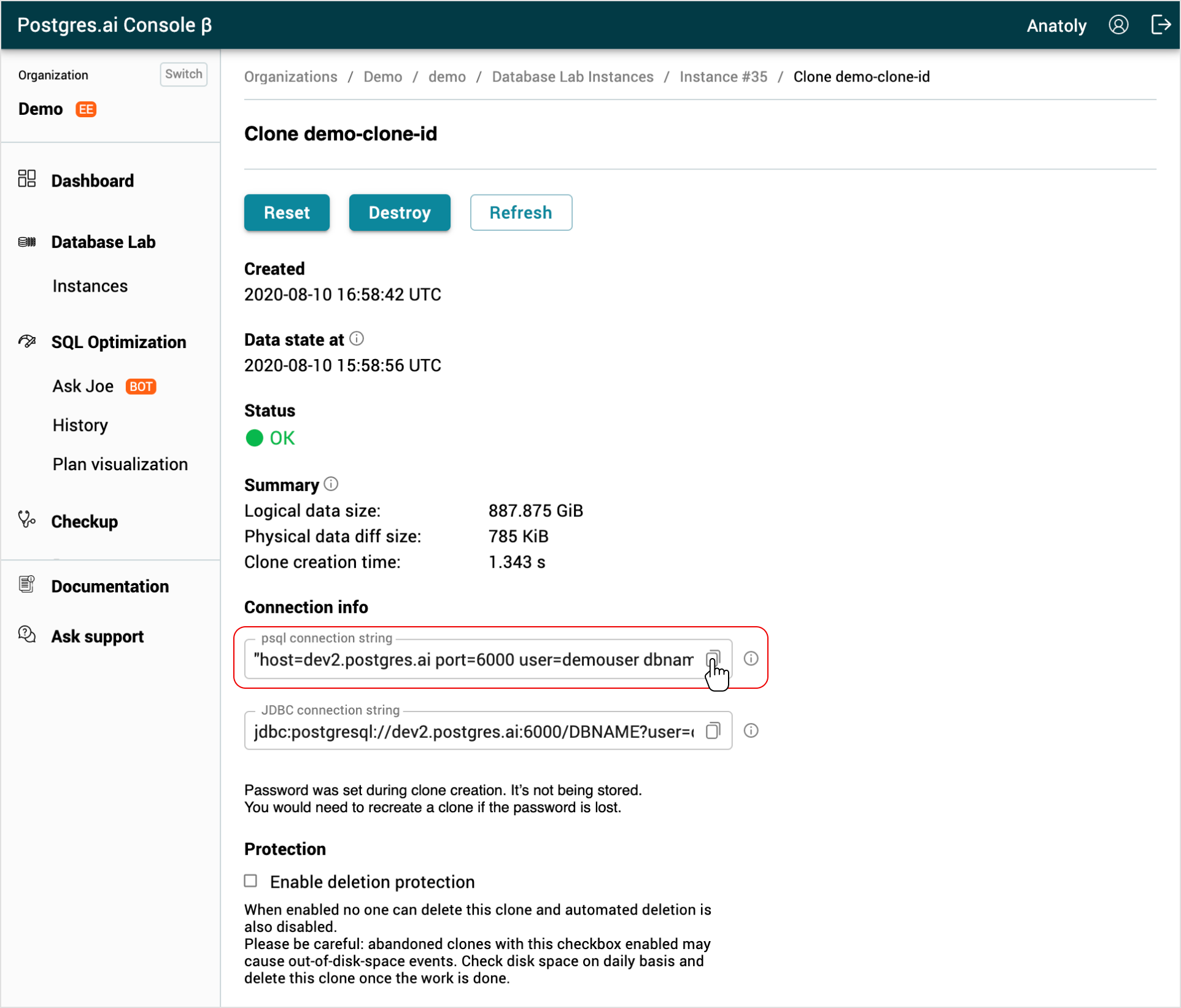
- In the terminal, type
psqland paste the psql connection string field contents. Change the database nameDBNAMEparameter; you can always usepostgresfor the initial connection. - Run the command and type the password you set during clone creation.
- Test the established connection by listing tables in the database with the
\dcommand.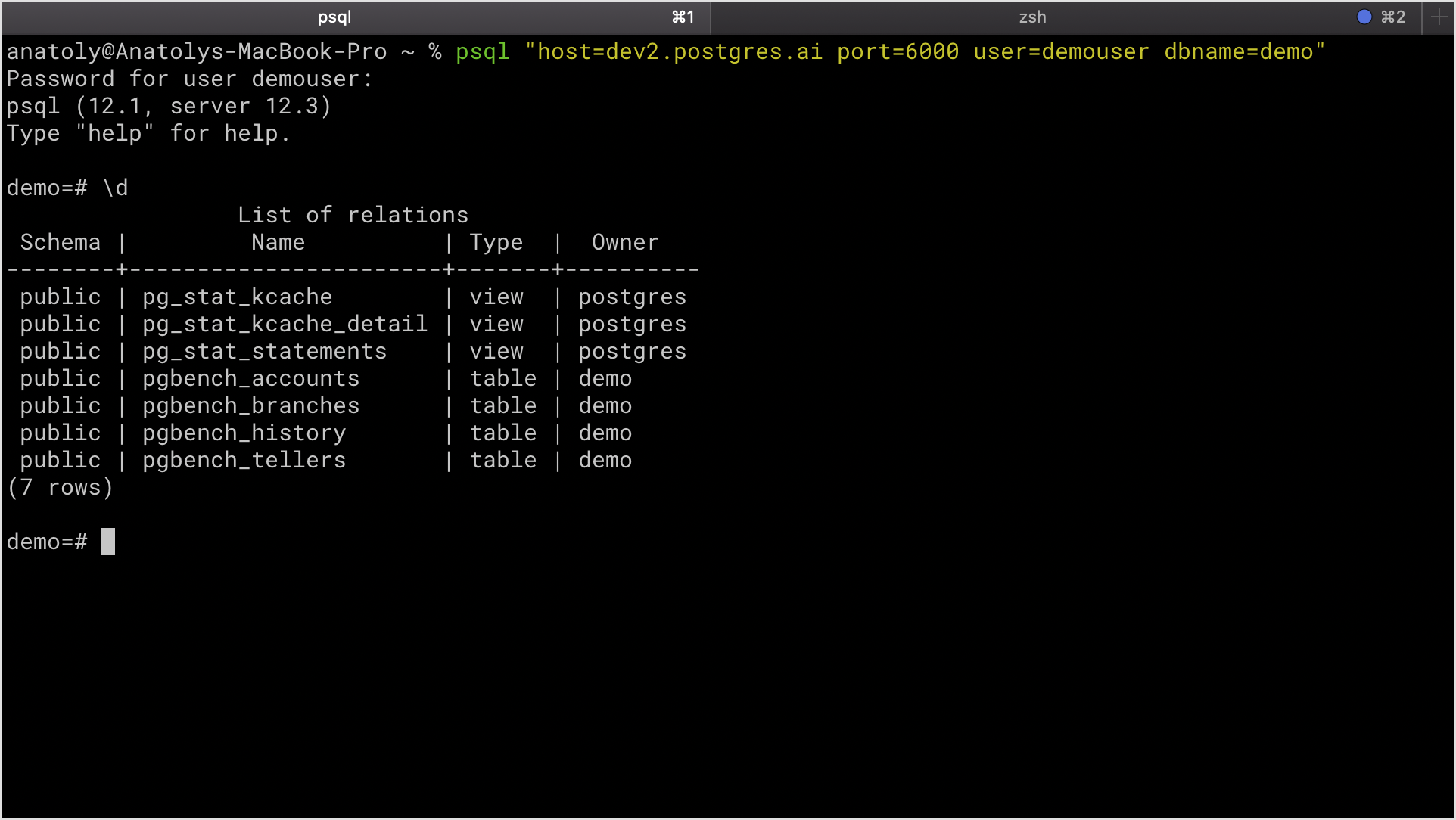
CLI
Before you run any commands, install the DBLab CLI and initialize the configuration. For more information, see Install and initialize DBLab CLI.
Reference
- Command
dblab clone status
Connection
- Get the connection information for the clone:
dblab clone status CLONE_ID
{
    "id": "CLONE_ID",
    "status": {
        "code": "OK",
        "message": "Clone is ready to accept Postgres connections."
    },
    "db": {
        "connStr": "host=HOSTNAME port=6000 user=USERNAME dbname=DBNAME",
        "host": "HOSTNAME",
        "port": "6000",
        "username": "USERNAME",
        "password": ""
    },
    ...
}
- Connect to the clone using any Postgres client, e.g., psql. Change the database name
DBNAMEparameter; you can always usepostgresfor the initial connection. Type the password you set during clone creation:
psql "host=HOSTNAME port=6000 user=USERNAME dbname=DBNAME"
Password for user USERNAME:
psql (12.1, server 12.3)
Type "help" for help.

DBNAME=#
- Test the established connection by listing tables in the database with the
\dcommand.
Direct connection (JDBC)
- From the Database Lab clone page under section Connection info copy JDBC connection string field contents by clicking the Copy button.
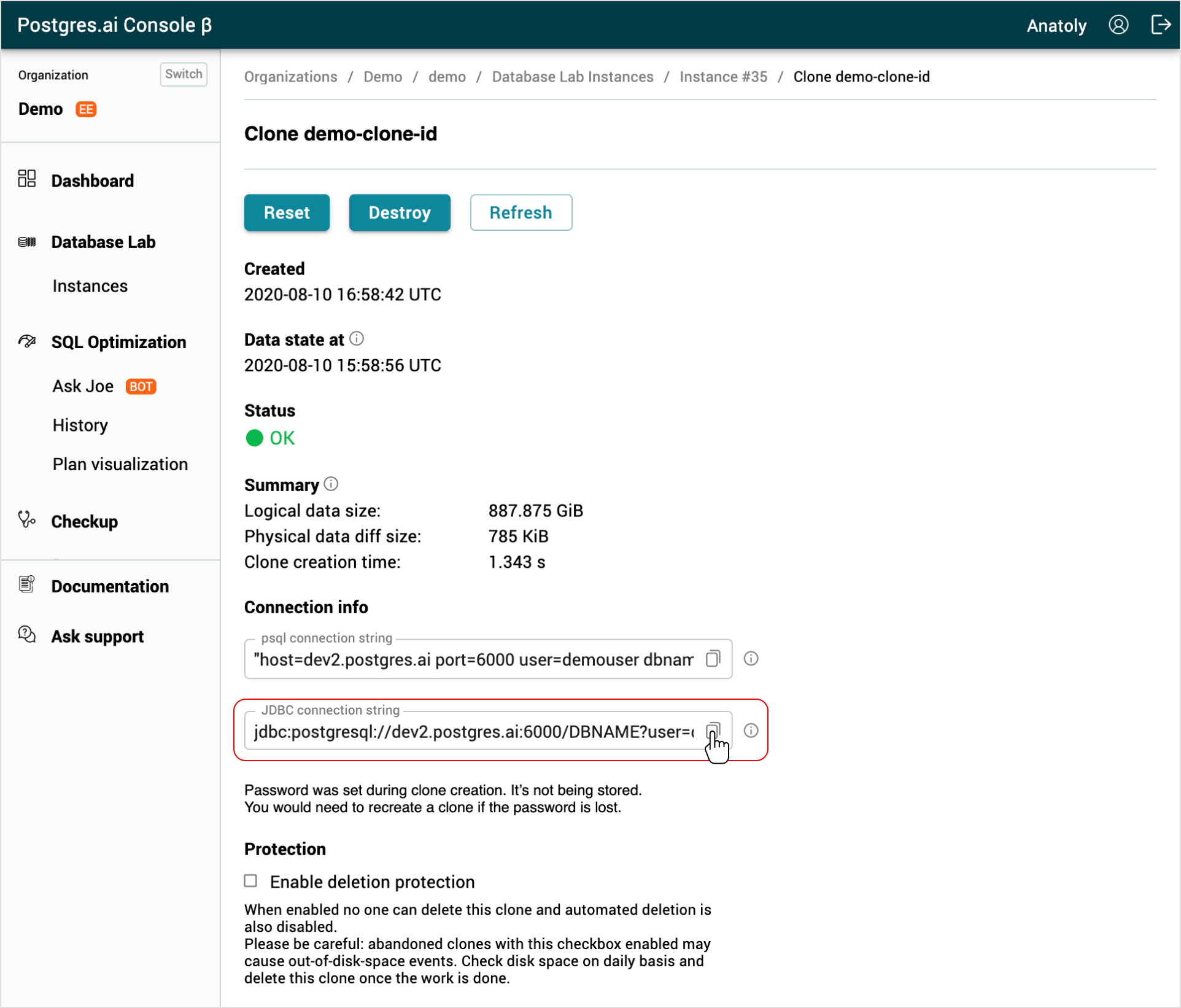
- Use any Java-based PostgreSQL client to connect. For this guide, we will use CloudBeaver. Open the client.
- Click Connection / New connection / Custom.
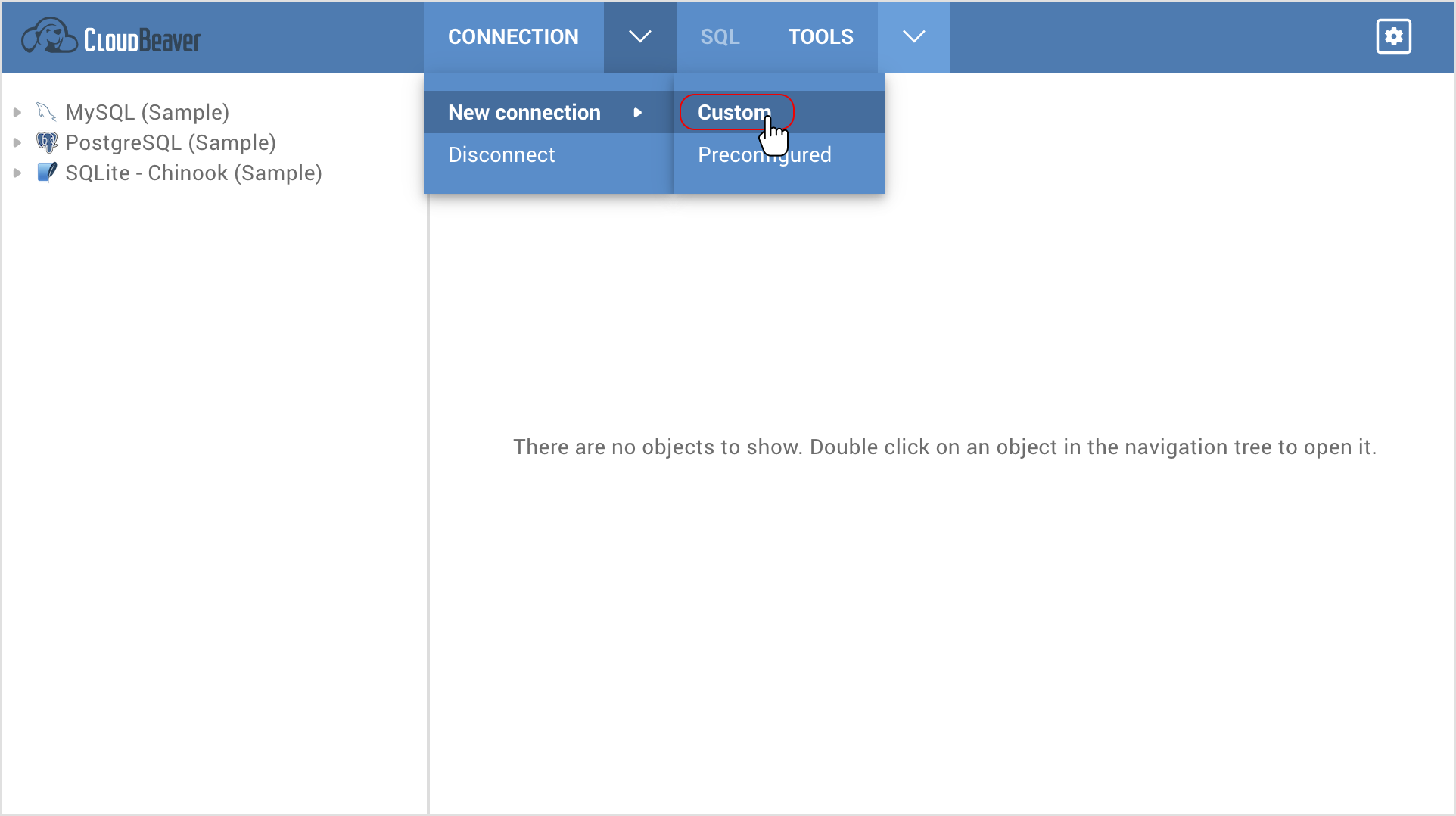
- Select the URL radio button and paste JDBC connection string field contents to JDBC URL. Change the database name
DBNAMEparameter; you can always usepostgresfor the initial connection. Change the passwordDBPASSWORDparameter to the password you set during clone creation.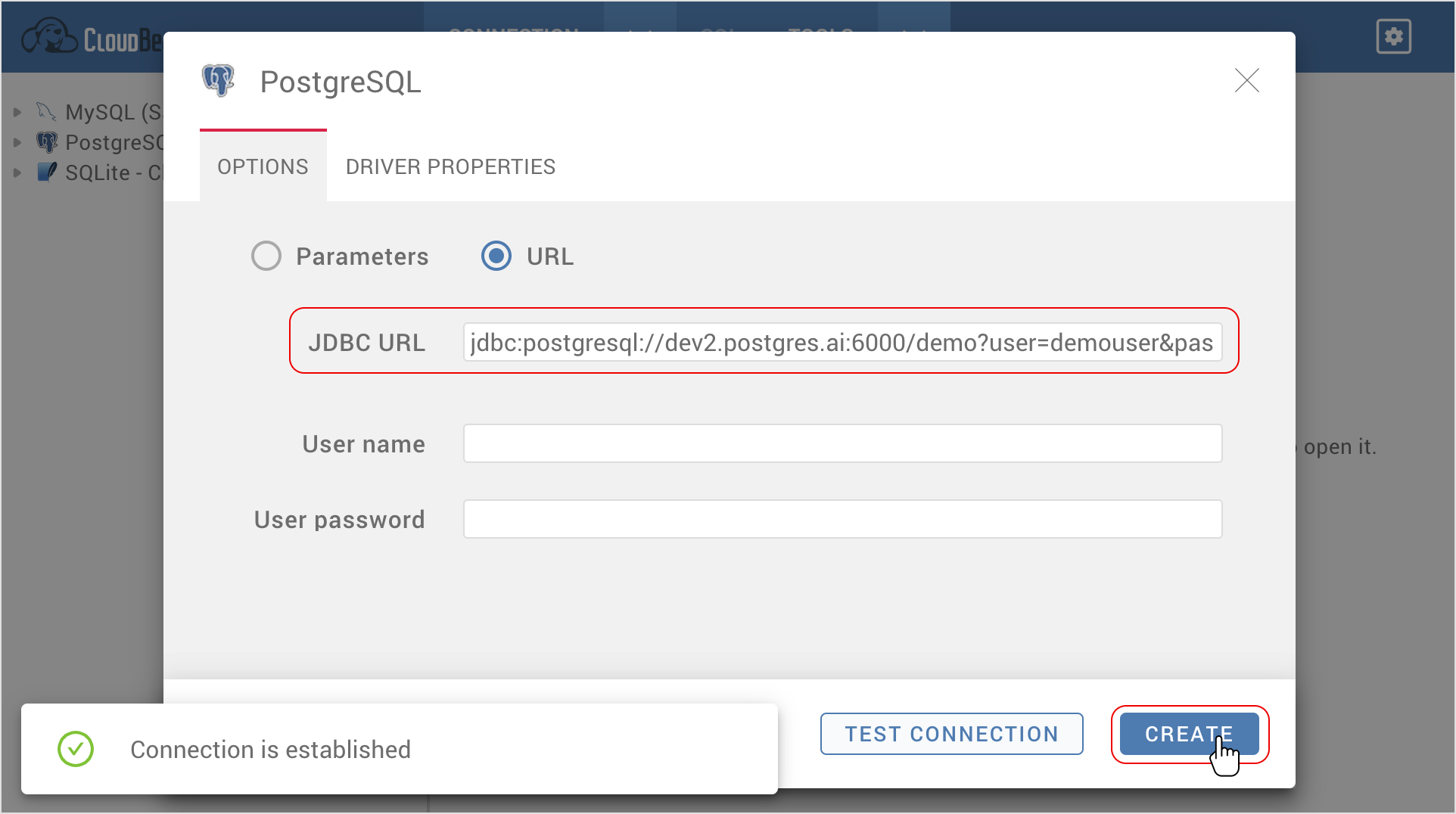
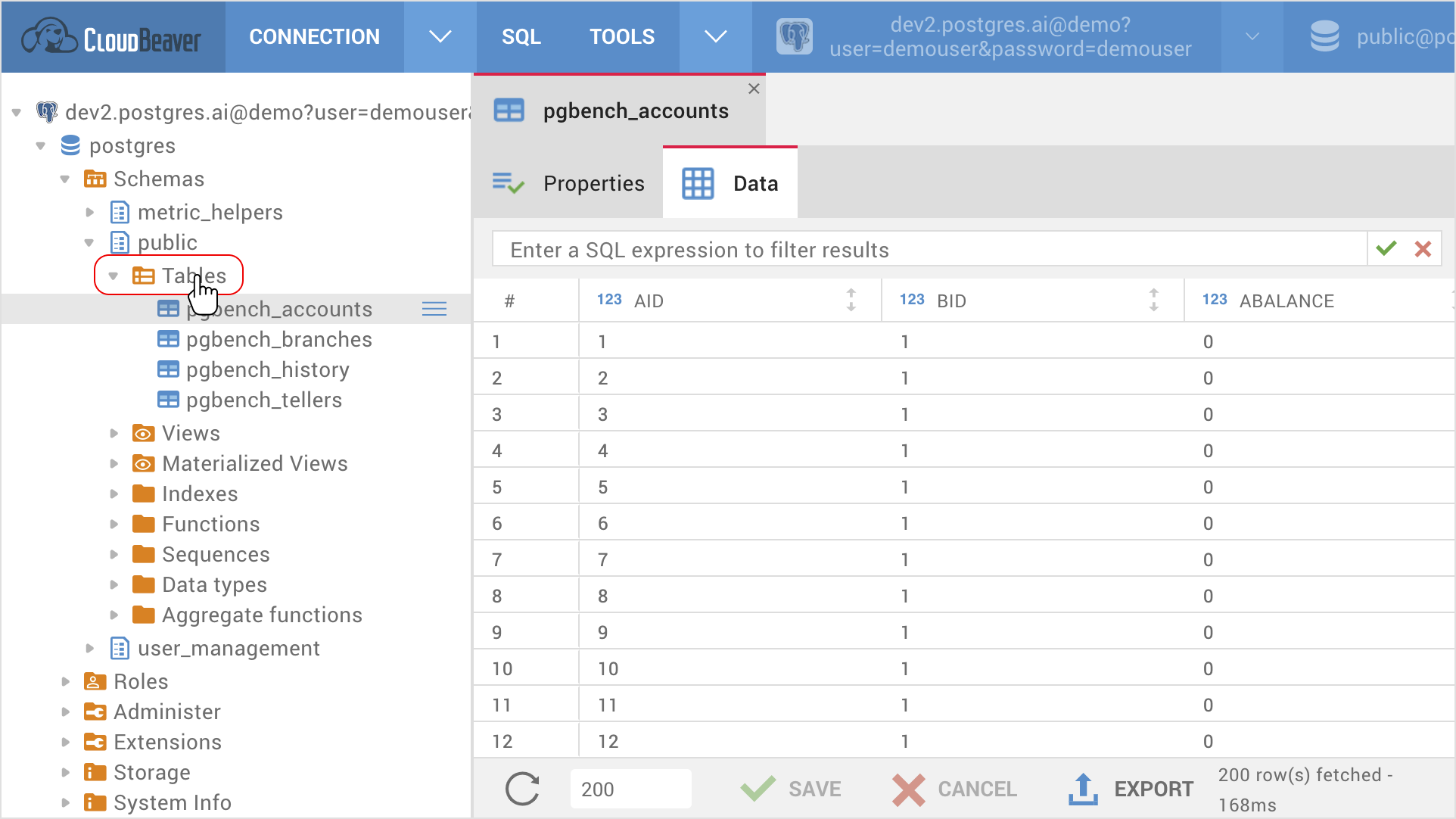
- Test the connection by fetching tables.
DBLab in PostgresAI cloud
A DBLab deployed to PostgresAI cloud gets no SSH keys of yours. Its clones listen on the server's
localhost and are reached through an SSH tunnel as dblab-tunnel, a user that can only forward
connections to the clone ports.
- Allow your SSH key: on the DBLab's page in the Console, in Clone access, select or add your key
(organization admins), or run
postgresai dblab access add <id or name> --public-key-file ~/.ssh/id_ed25519.pub. A change applies to new connections within a minute. - Open the tunnel for the clone's port, for example 6000:
ssh -N -L 6000:127.0.0.1:6000 dblab-tunnel@<server ip>
- In a second terminal, connect to the clone through it:
psql "host=127.0.0.1 port=6000 user=<clone user> dbname=postgres"
SSH port forwarding
tip
SSH keys need to be on the server with the DBLab Engine to use this connection option. For a DBLab in PostgresAI cloud, see DBLab in PostgresAI cloud.
GUI
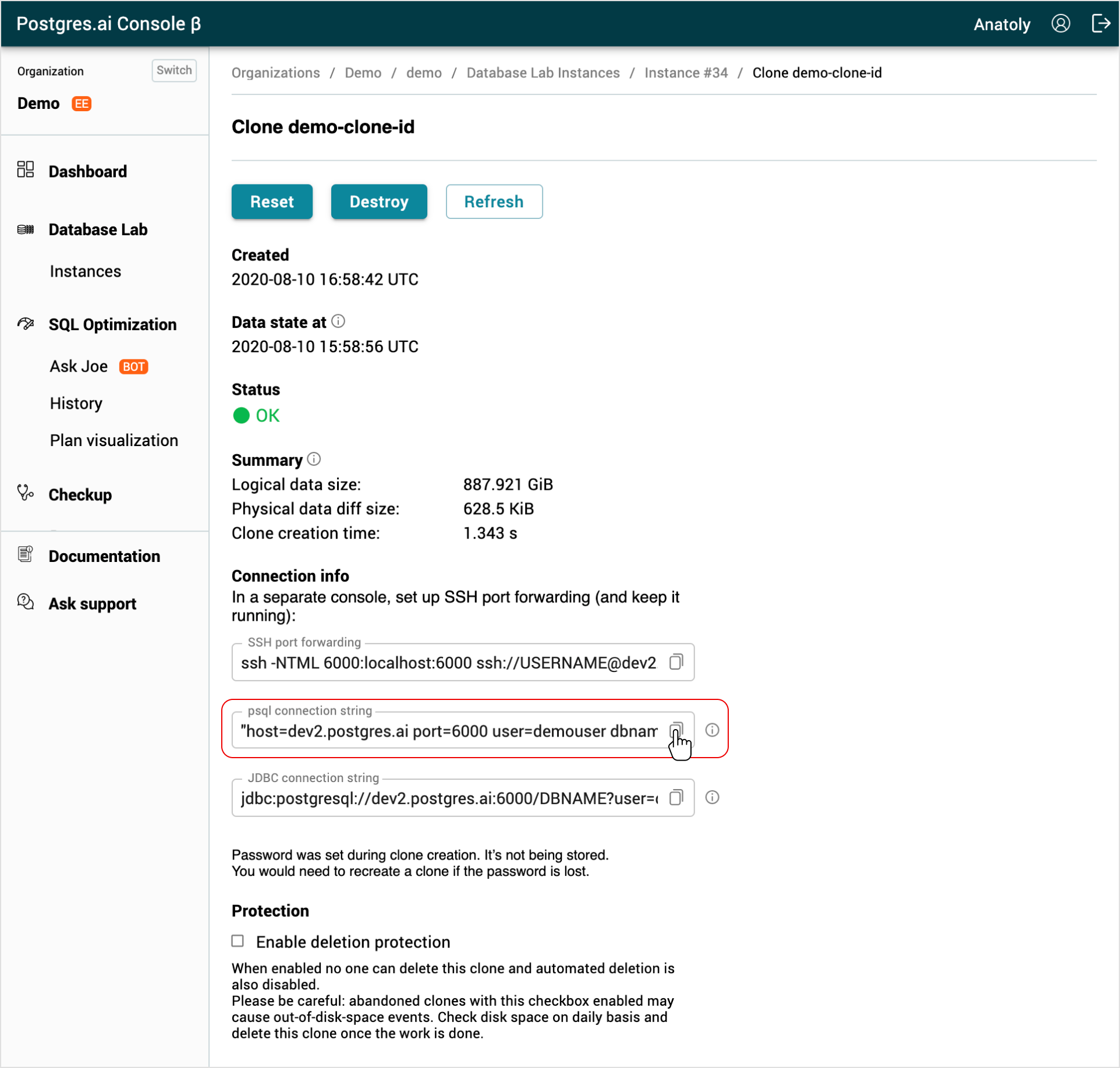
- From the Database Lab clone page under section Connection info copy SSH port forwarding field contents by clicking the Copy button.
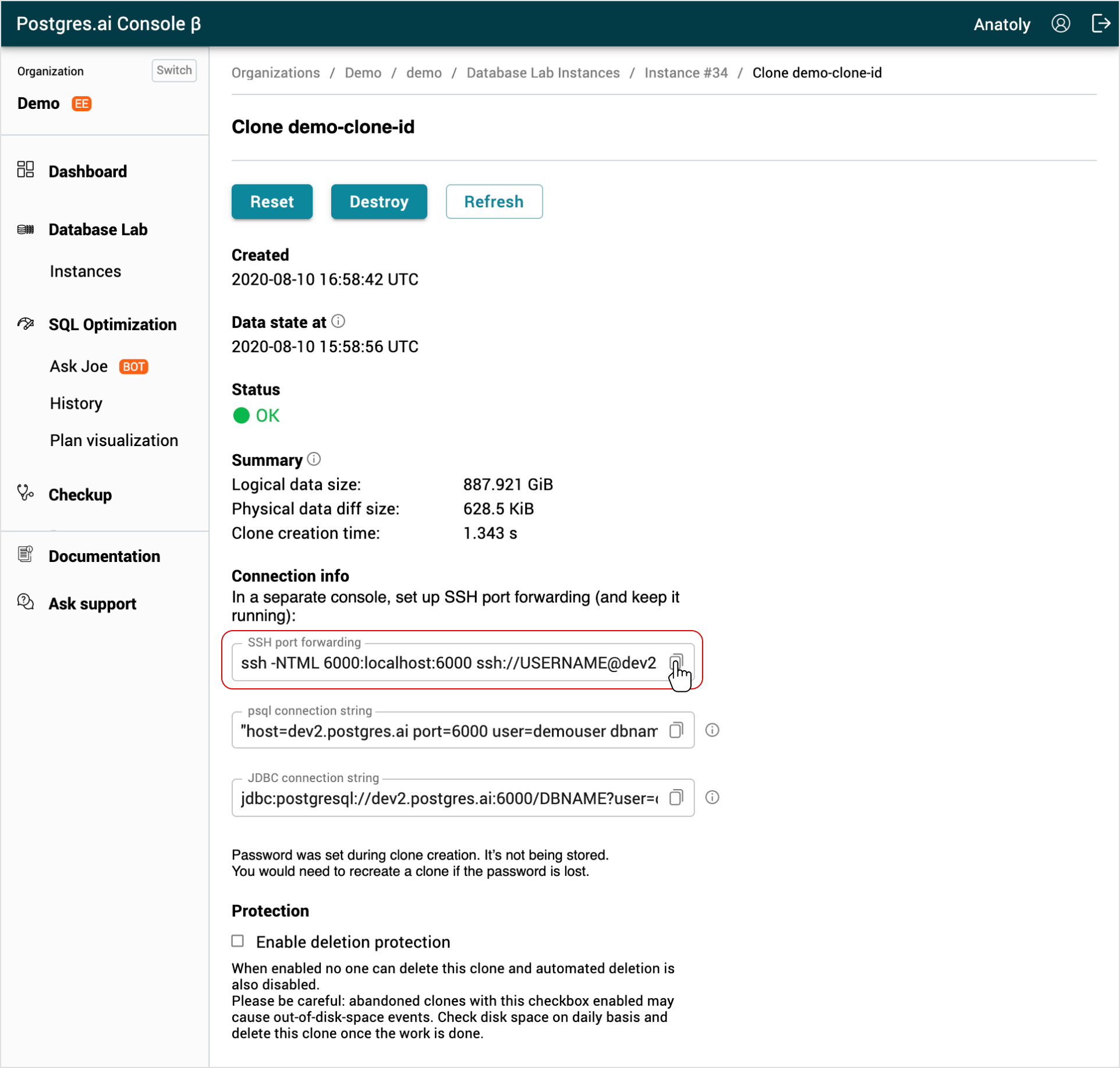
- In the first terminal tab, start SSH port forwarding using the provided command. Change
USERNAMEto match the username of your SSH key. Change the path to the SSH key if needed.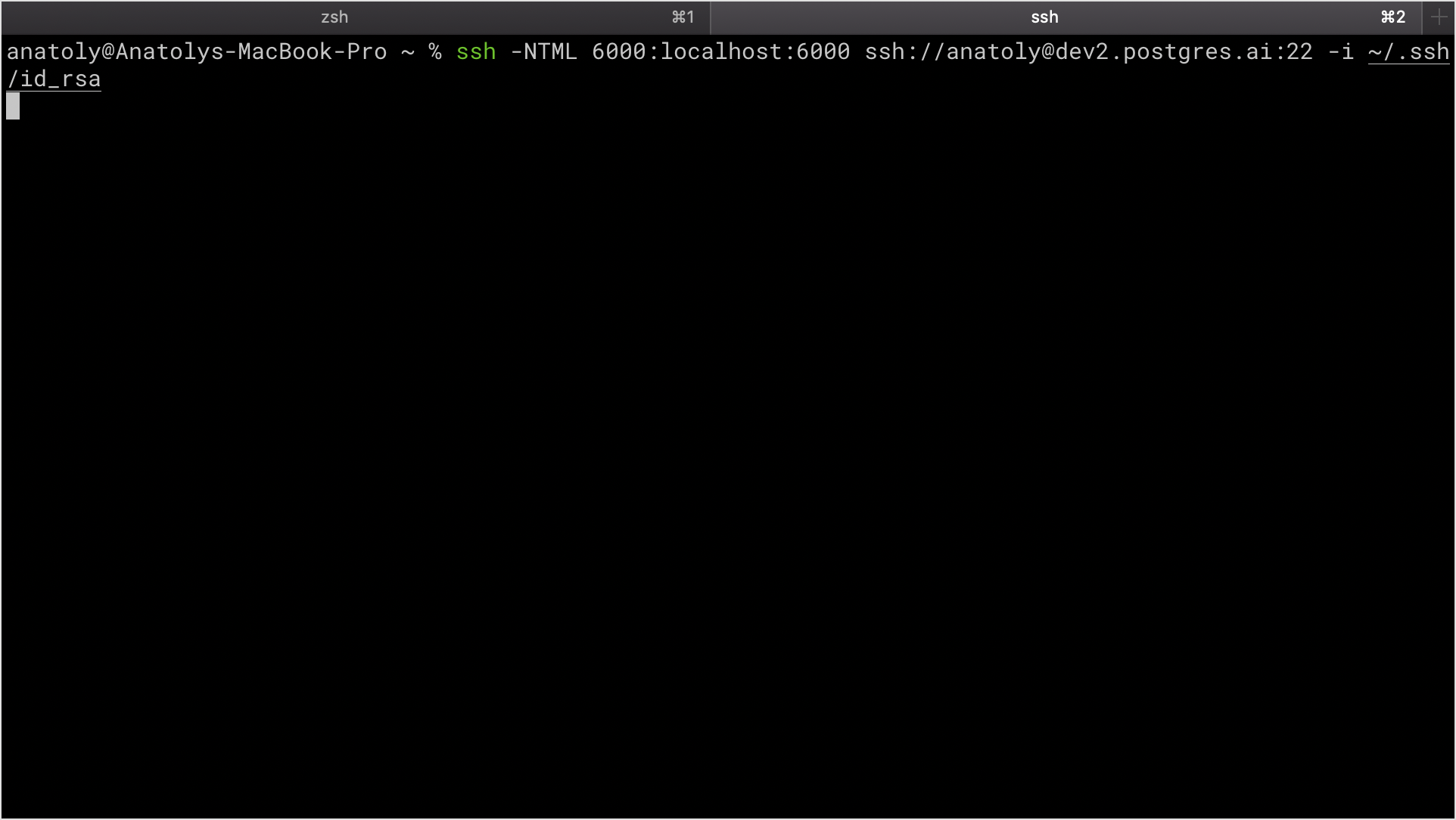
- From the Database Lab clone page under section Connection info copy psql connection string (will work the same with JDBC).
- In the second terminal tab, type
psqland paste the psql connection string field contents. Change the database nameDBNAMEparameter; you can always usepostgresfor the initial connection. Make sure thathost=localhost, as we need to connect to the local port forwarding tunnel. - Run the command and type the password you set during clone creation.
- Test the established connection by fetching the list of tables with the
\dcommand.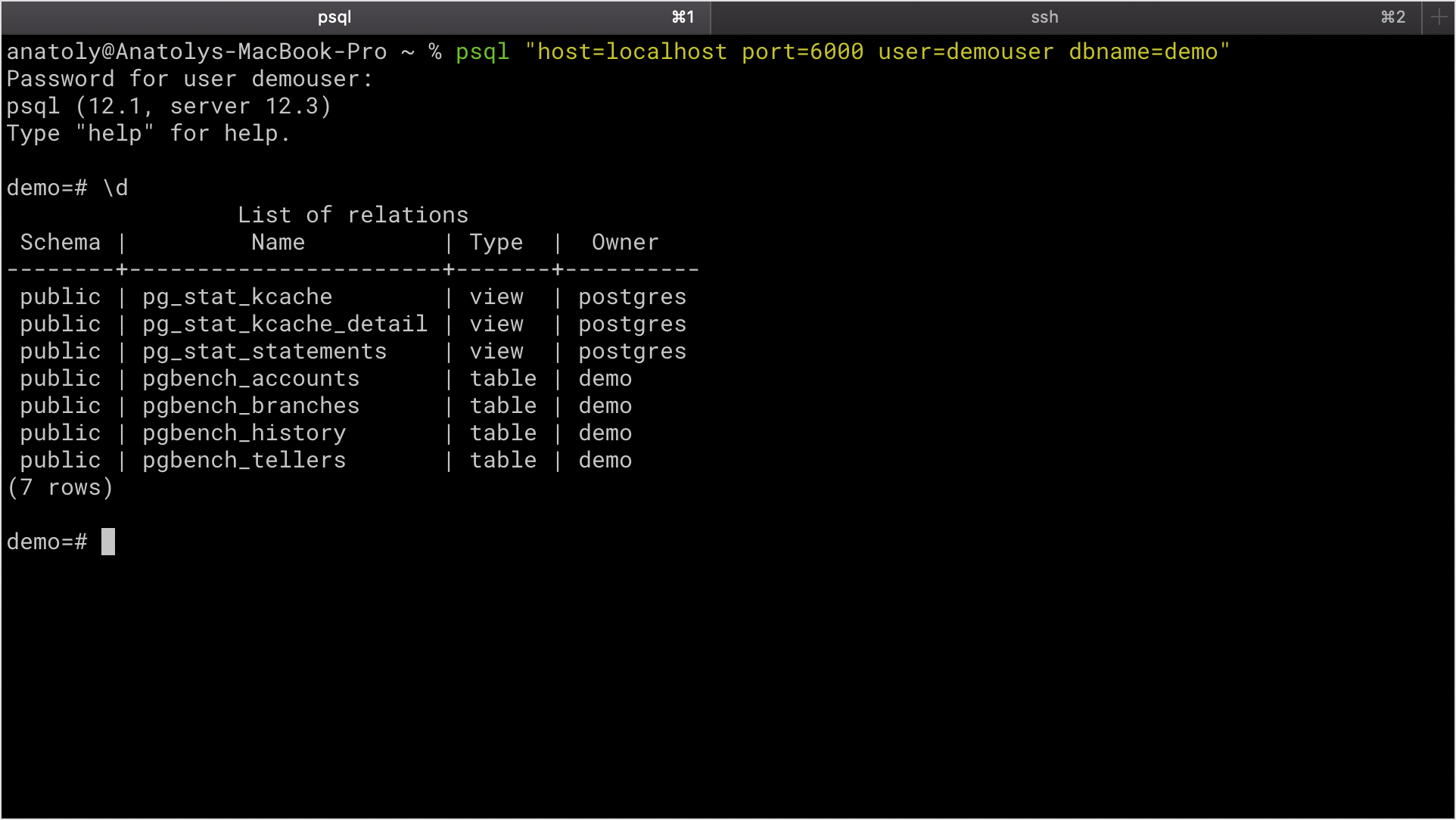
CLI
Before you run any commands, install the DBLab CLI and initialize the configuration. For more information, see Install and initialize DBLab CLI.
Reference
- Command
dblab clone status
Connection
- In the first terminal tab, start SSH port forwarding using the provided command. Change
USERNAMEto match the username of your SSH key. Change the path to the SSH key if needed.
ssh -NTML 6000:localhost:6000 ssh://USERNAME@HOSTNAME:22 -i ~/.ssh/id_rsa
- Get connection information of a clone.
dblab clone status CLONE_ID
{
    "id": "CLONE_ID",
    "status": {
        "code": "OK",
        "message": "Clone is ready to accept Postgres connections."
    },
    "db": {
        "connStr": "host=HOSTNAME port=6000 user=USERNAME dbname=DBNAME",
        "host": "HOSTNAME",
        "port": "6000",
        "username": "USERNAME",
        "password": ""
    },
    ...
}
- Connect to the clone using any Postgres client, e.g., psql launched from a second tab. Change the database name
DBNAMEparameter; you can always usepostgresfor the initial connection. Type the password you set during clone creation. Make sure thathost=localhost, as we need to connect to the local port forwarding tunnel.
psql "host=localhost port=6000 user=USERNAME dbname=DBNAME"
Password for user USERNAME:
psql (12.1, server 12.3)
Type "help" for help.

DBNAME=#
- Test the established connection by listing tables in the database with the
\dcommand.